
Media can be the difference between a post that is skipped and one that draws in your audience. Adding media to a post can be done from the Compose page while authoring your post.
Frequently Asked Questions #
Media #
What types of media can I add to posts with Postful?
Postful currently supports adding one or multiple images to posts. Postful does not yet support GIF or video posts.
Each network has its own posting requirements for the number of images that can be added to a post:
- X: up to 4 images
- Instagram: up to 10 images
- LinkedIn & Threads: up to 20 images
Can I share posts without attaching media?
Yes! You can publish posts that are text-only on most supported networks.
Supported Networks for Text-Only Posts
- Threads
- X (Twitter)
Network Requiring Media
- Instagram requires an image or video. Text-only posts are not supported.
Tip: Text-only posts are great for quick updates, thought leadership, or starting conversations
Where do images from “Find Image for Me” come from?
“Find Image for Me”, an experimental feature to automatically identify stock images, uses Unsplash as the stock image provider. Images that are selected via “Find Image for Me” are licensed to be used for social posts by Postful users.
Can I post just an image without a caption?
Yes — you can post an image or images without adding a caption to the following networks:
- Threads
- X (Twitter)
Although captions aren’t required, captions help contextual images for your audience. If you are struggling to come up with a caption, use Postful’s brainstorm feature.
Adding images to your posts #
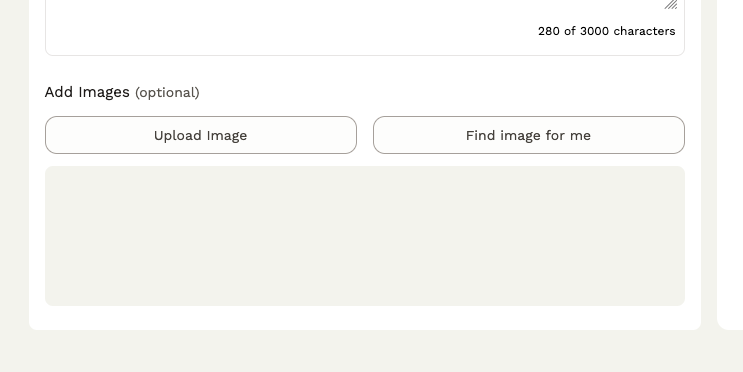
- In the Compose page, go to the section labeled Add Images.
- Click Upload Image.
- Select the file(s) from your local device you want to use
- For multi-image posts, you can select more than one image at a time.
- For stock photos or images found via URLs, please download the image to your local device to upload to Postful
- Click Open and the image will upload for processing by Postful.
- To make sure images can be shared to various social networks, we reduce the dimensions and overall file size to meet the network requirements.
- When the image is processed successfully, you will see it in the Image area.
Using “Find Image For Me” #
Postful provides an experimental feature to automate stock image search called Find image for me. Find image for me uses the text content of your post to select a stock image from Unsplash.
To use this feature, you need to have written content in your post already. Note: The Find image for me button is only active when sufficient text is present.
- Click the Find image for me button to the right of “Upload image”
- Postful search Unsplash for a relevant image and add it to you post.
- You can edit or delete these images in the same way as uploaded images.
As an experimental feature, we are looking to refine the experience. If you have feedback, please reach out: support@postful.ai
Editing images #
- To edit an image, click the pencil icon in the upper right of the image you wish to edit.
- In the modal, you have the ability to select image cropping presets and perform freeform cropping, image rotation, and image reflection.
- Once you are satisfied with your edits, click Export to save you changes and return to the Compose page.
More image editing options are forthcoming. Reach out if you have specific requests or needs for image editing.
Reordering images #
- To reorder images, click and hold the image you want to move. Drag the image to the position within the group of images.
- Images in a multi-image posts display left to right based on network specific requirements. Consult post preview to view how a multi-image post will display on a given network.
Removing images #
To remove an image, click the “X” in the upper right of the image you wish to remove.